
Questions & Field Prompts
Describe your situation or start with a ready-made question for travel, preparedness, homesteading, equipment, and everyday problems.
OFFGRID AI FIELDGUIDE · YOUR MOBILE COMPANION
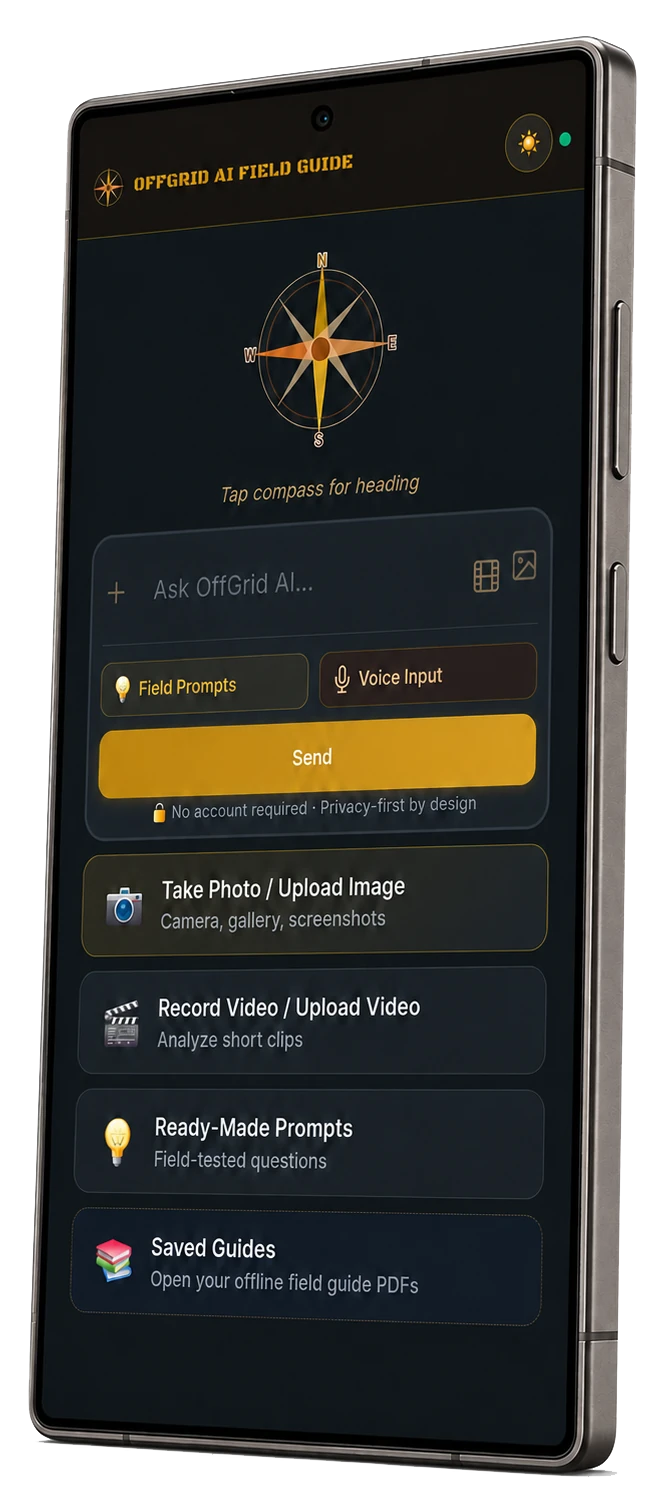
Get guidance on your phone, show what you are looking at, and turn useful answers into illustrated field guides. Use the online companion while connected, then keep saved PDFs ready for offline reading.
Open it from the QR code on your ToolKit dashboard or go straight to FieldGuide in your phone's browser.
Free online experience. No account required. Internet is required for new AI answers, media analysis, and image creation.
FROM YOUR DRIVE TO YOUR PHONE
Look at the bottom left of your OffGrid AI ToolKit dashboard.
Use your phone's camera and open the link. Or visit offgridtoolkit.ai/mobile directly.
Ask a question, add a photo, or choose a Field Prompt to get started.
The QR code opens the online companion. Your phone does not need to share the computer's Wi-Fi, and the computer does not need to stay running. This does not link the phone to your local USB AI or synchronize your Knowledge Base.

MORE WAYS TO UNDERSTAND YOUR SITUATION
FieldGuide brings practical AI tools to your phone, with an emphasis on answers you can turn into useful references.
Describe your situation or start with a ready-made question for travel, preparedness, homesteading, equipment, and everyday problems.
Add one or several related photos, or a short video, to provide details that are hard to describe. Ask about visible features and compare possible explanations.
Turn an answer into a diagram or illustrated Field Guide. Review it, save the PDF, and use Read Aloud when listening is more convenient.
AI can make mistakes. Check consequential advice and image identifications before acting, especially where health, safety, food, or equipment are involved.
SEE THE TOOLS IN ACTION
Explore real FieldGuide screens. The Android app is shown here; browser layout, permissions, and file-saving controls can vary by phone.
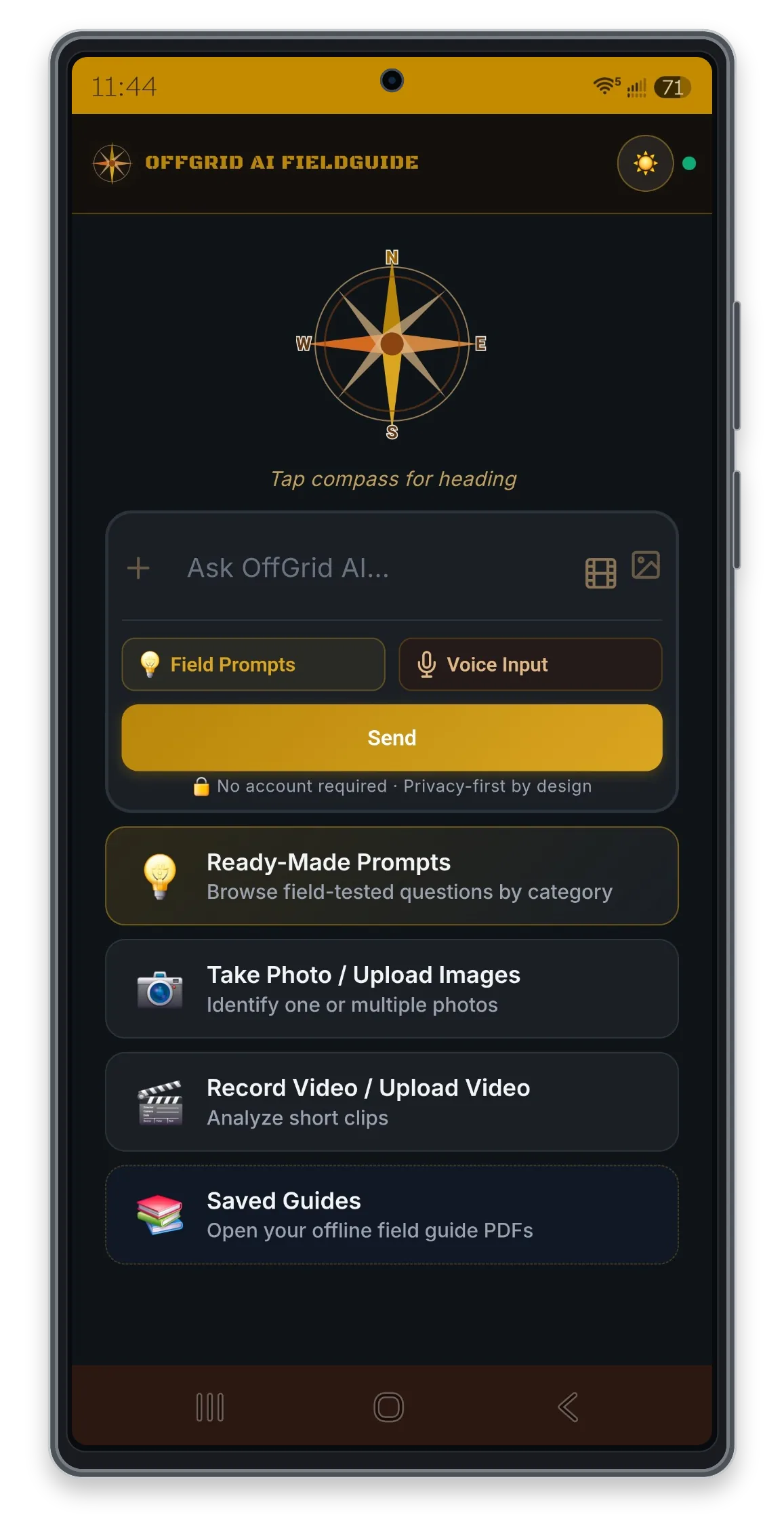
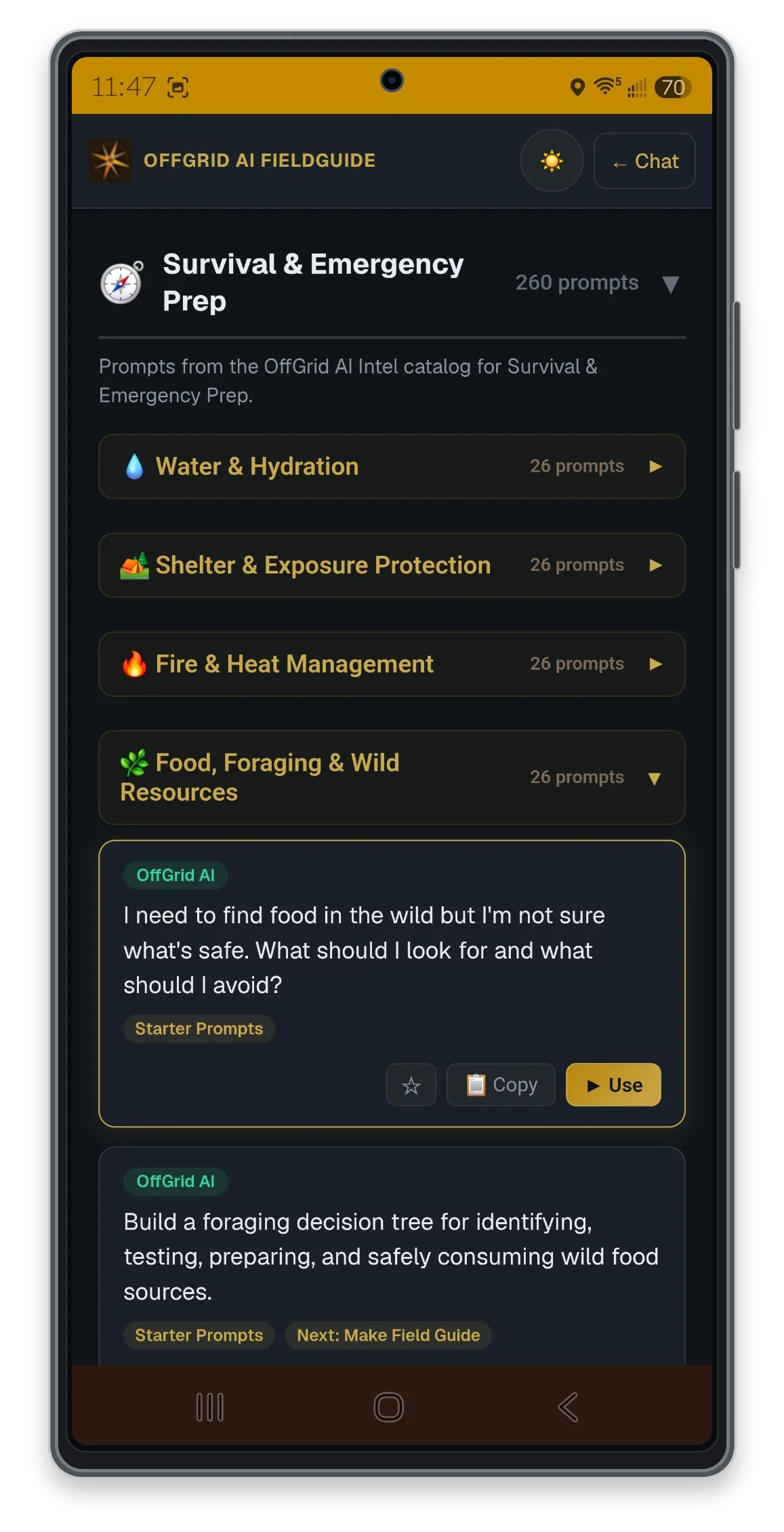
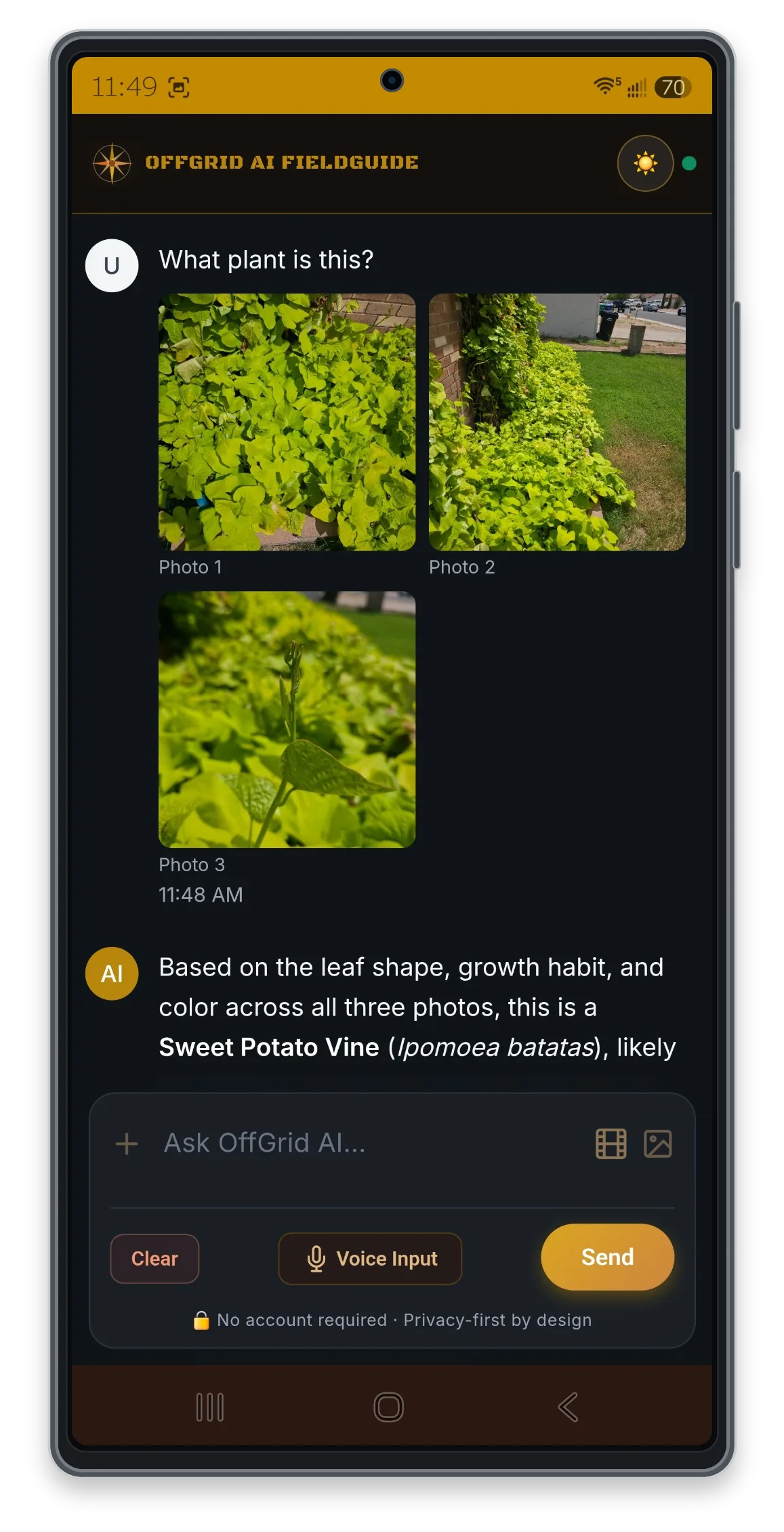
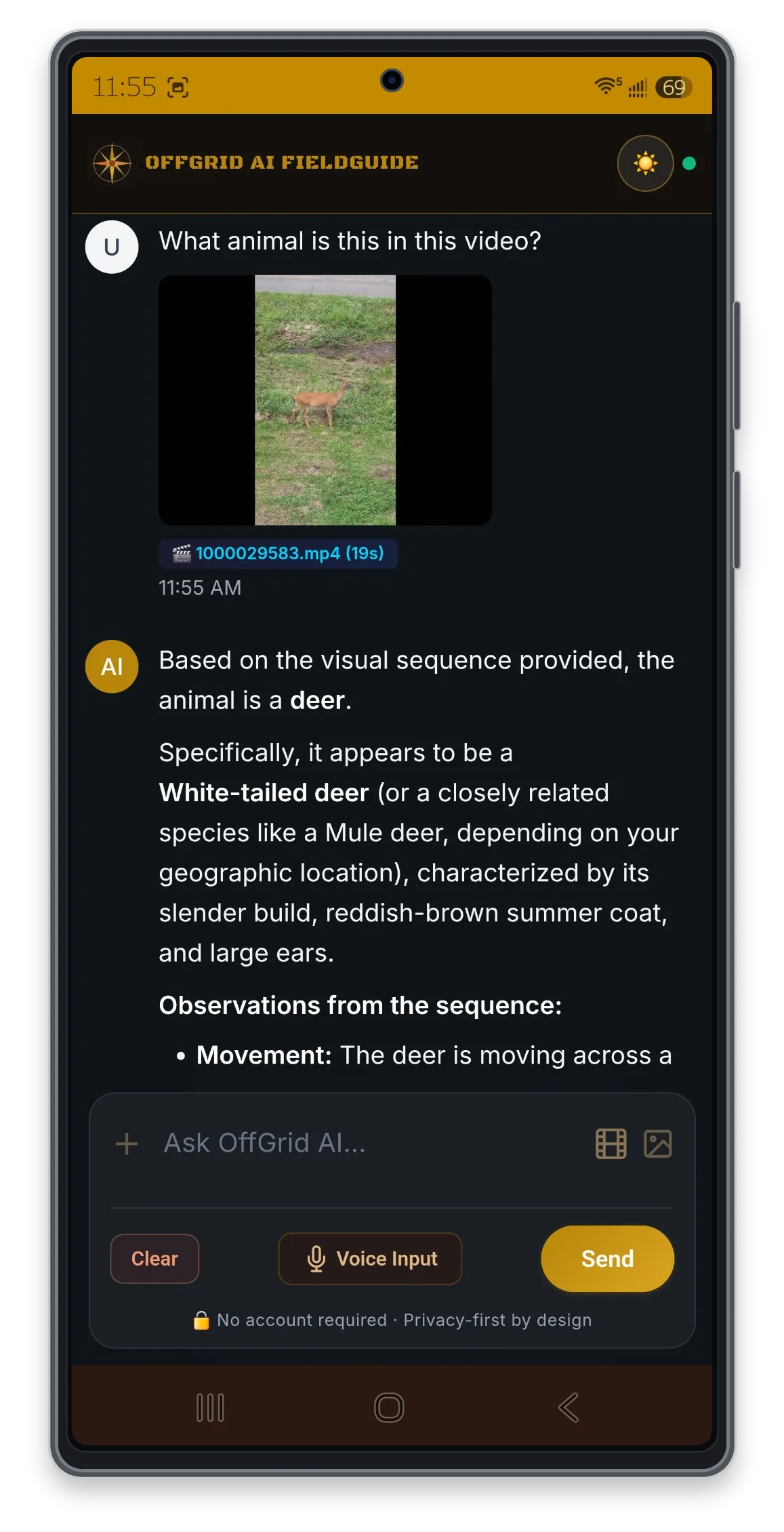
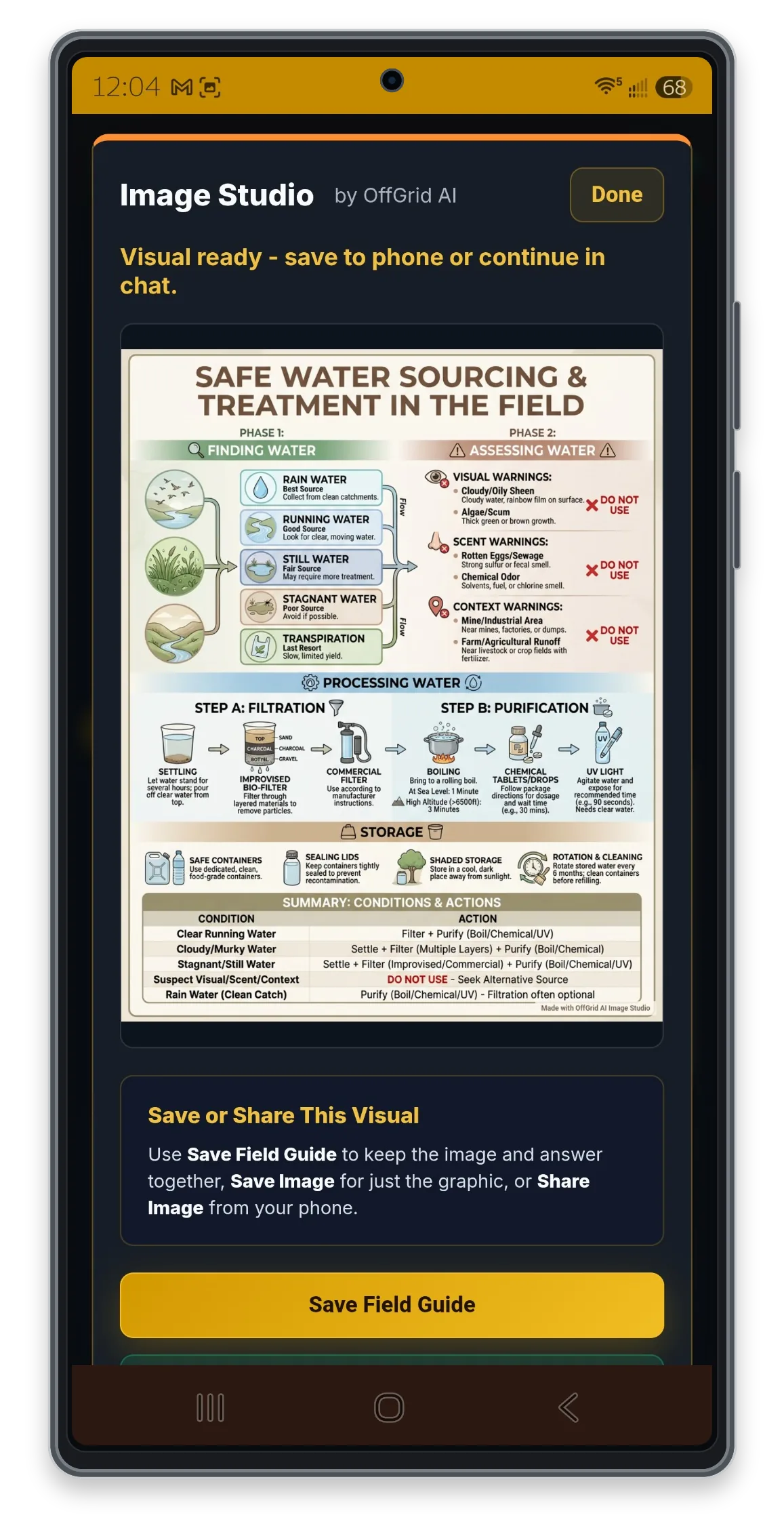
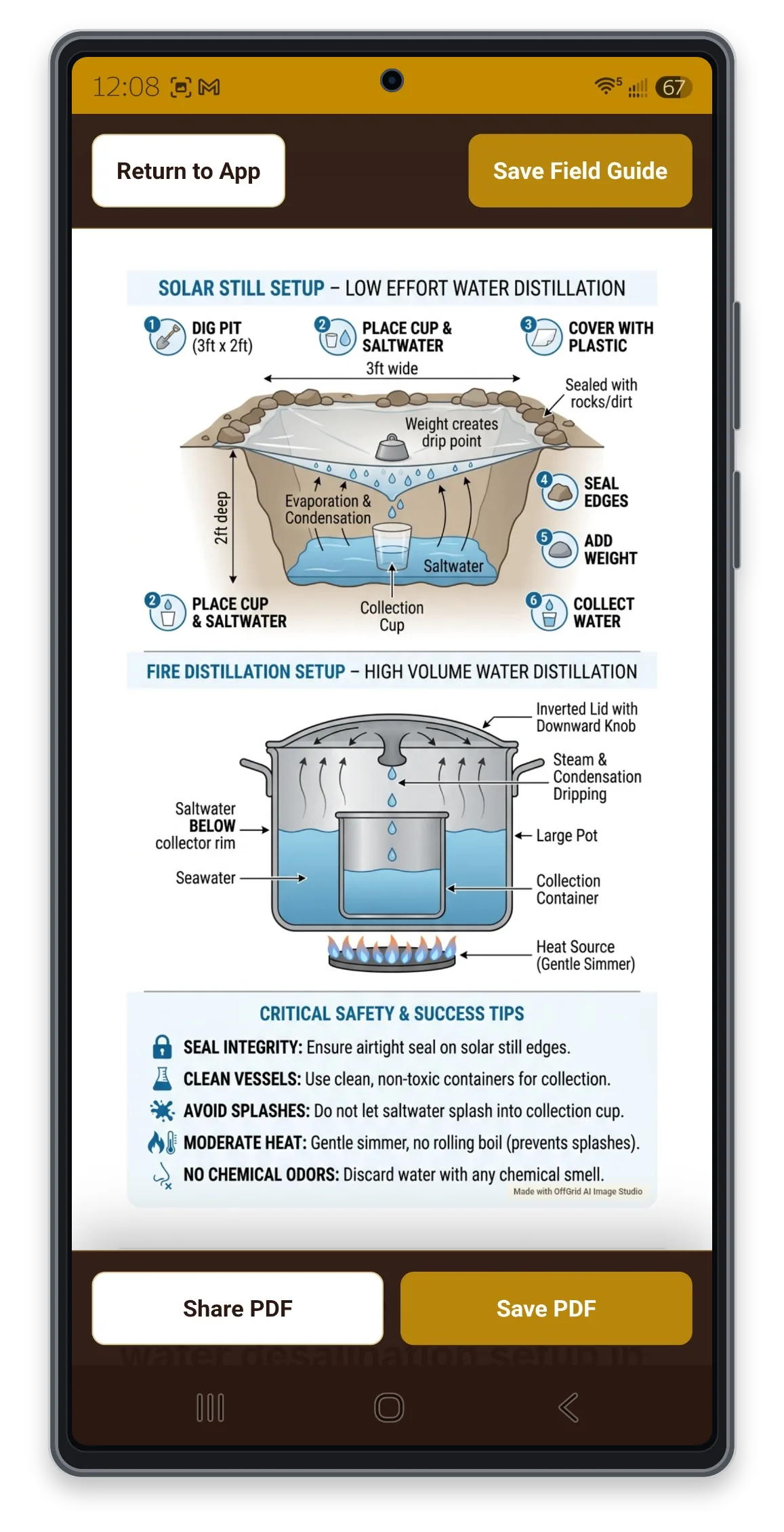
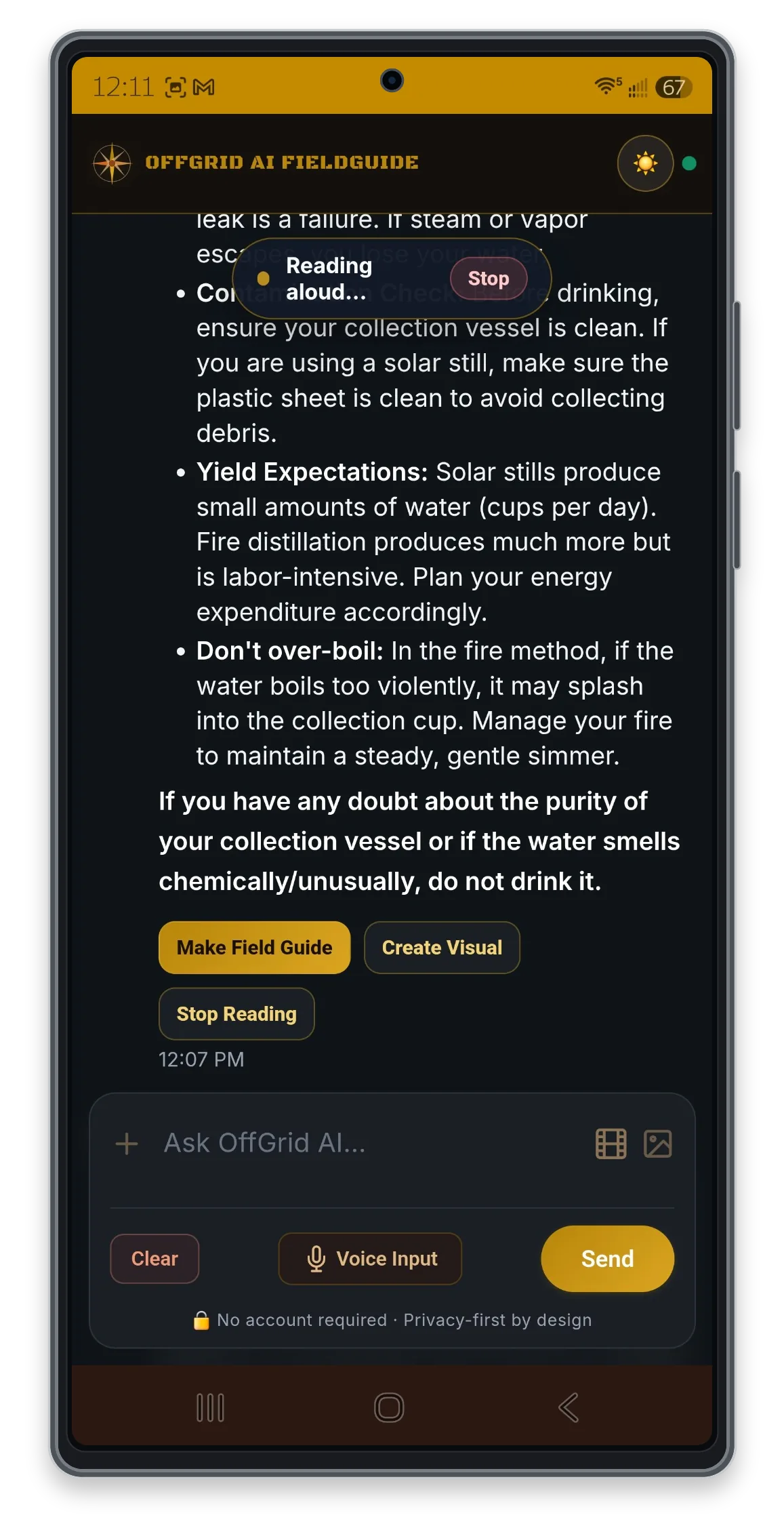
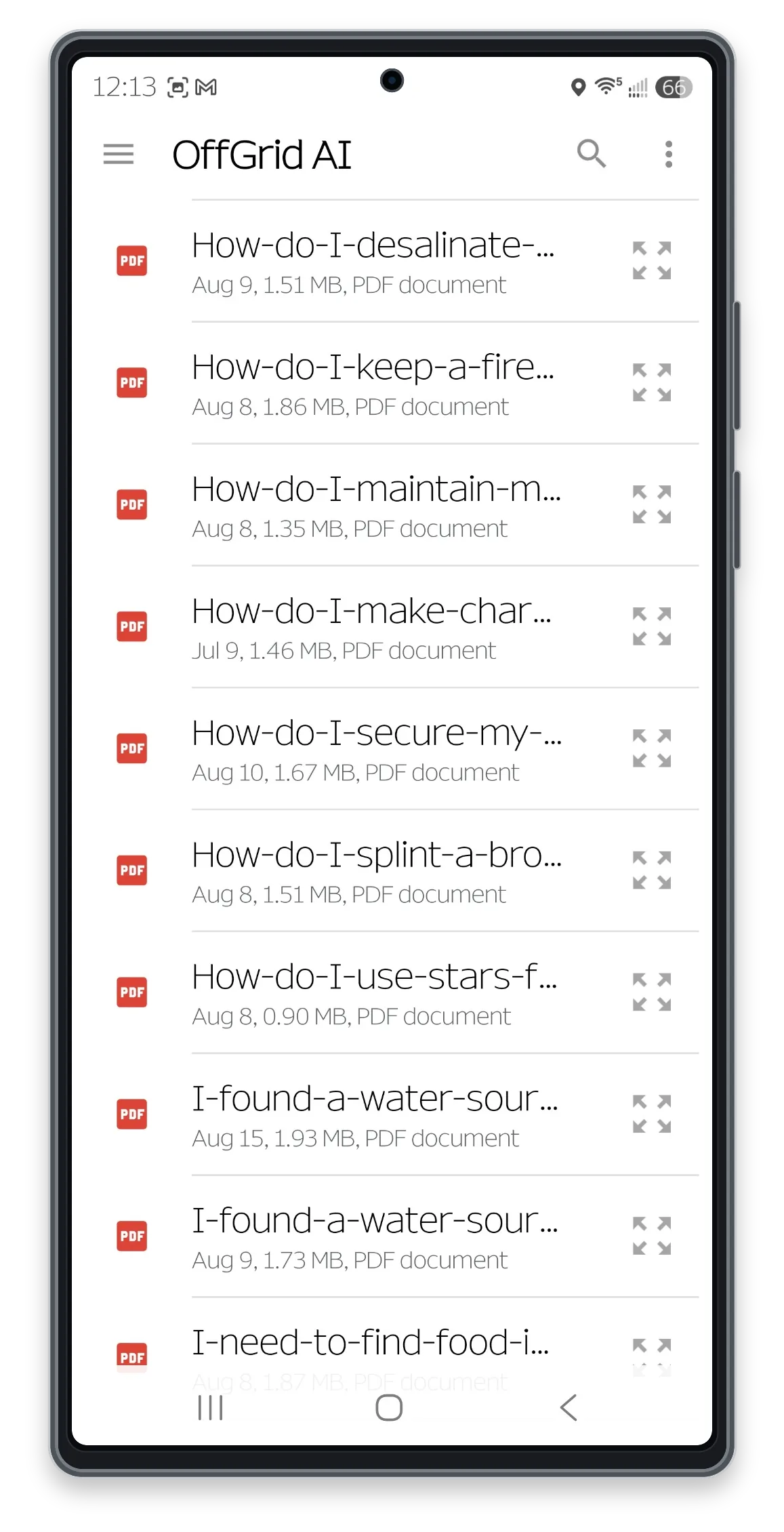
Swipe or scroll to explore all eight screens. On a keyboard, focus the gallery and use the arrow keys. Select a screen to open the image viewer.
WATCH THE COMPLETE WORKFLOW
Describe the project, place, or situation you want guidance for.
Create a supporting visual and bring it together with the written answer.
Check the text and visual, save the complete guide to your phone, and confirm that the file opens.
Prepare a reference for your next trip, a piece of equipment, a homestead project, or a skill you want to learn. Keep the useful result after the connection is gone.
TWO USEFUL WAYS TO STAY PREPARED
FieldGuide helps you build portable references while online. The USB ToolKit can answer new questions on a compatible Windows or Mac computer without internet, even if you have not built a personal library.
| What you want to do | Mobile FieldGuide | USB ToolKit |
|---|---|---|
| Get new AI answers | Online, from your phone. | Offline, on your compatible computer. |
| Review saved guidance | Open PDFs you saved to your phone, including offline. | Open your saved Knowledge Base files offline. |
| Create a new visual | Use online image generation. | Use the optional online Image Studio, then save the result for offline use. |
| Explore installed U.S. maps | The dashboard QR code does not provide the USB map library. | Available with Map Edition. |
MOBILE QUESTIONS
No. The dashboard QR code opens the mobile web experience. You can use it in your browser now. An Android app is also available on Google Play; see the FieldGuide website for current app availability.
Previously saved PDFs can be opened from your phone's files without internet. New AI answers, photo/video analysis, and image generation require an internet connection. Save and reopen your guides before you leave signal.
The USB ToolKit is the separate option for generating new AI answers offline on a compatible computer.
Save the PDF to your phone using the available download or save control, then find it in your phone's Files or Downloads. In the app, Saved Guides helps you reach saved documents. File locations and sharing controls vary by platform.
A guide open in a browser preview is not a substitute for a locally saved file. Confirm the downloaded PDF opens before you need it offline.
No. The QR code opens a web address, not a live connection to your flash drive. To keep a phone-created guide in your USB Knowledge Base, transfer the saved PDF to your computer and copy it into the appropriate personal reference folder.
No account is required. Unlike the USB ToolKit's local AI, the mobile companion sends the content needed for your request to online AI services. Review the FieldGuide privacy policy for current processing details.
Your phone or browser may ask for camera, microphone, photo, or motion permission when you use those features. Availability varies by device and browser.
PREPARE WHILE YOU ARE CONNECTED